
Marketplace Onboarding
Last updated: September 20, 2026
This guide walks you through the essential setup steps so you can list products, fulfill orders, and receive payouts without delays.
Step 1: Complete Your Profile
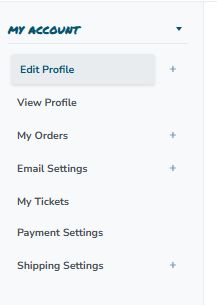
Dashboard → My Account → Edit Profile
Step 2: Set Up Your Shipping Settings
Dashboard → My Account → Shipping Settings
All financial transactions are processed and stored only on Stripe’s servers, using global banking security standards. Brakebee never stores or processes your financial data.
Stripe Connect acts as a merchant account that:
Step 1: Complete Your Profile
Dashboard → My Account → Edit Profile
- Your profile helps customers trust your store and allows Brakebee to support you effectively.
- Complete as much information as possible
- Add a clear profile photo or logo
- Verify your contact and business details
- A complete profile improves visibility and reduces setup issues later.
Step 2: Set Up Your Shipping Settings
Dashboard → My Account → Shipping Settings
- Your shipping settings are used to calculate rates, generate labels, and process orders accurately.
- Confirm your ship-from address
- Enter realistic package sizes and weights
- Keep this information current if anything changes
- Accurate shipping settings help ensure the best rates and smooth fulfillment.
- Brakebee uses Stripe Connect as our secure payments partner. From your payment settings page:
- Click to create a new Stripe account
- You will be redirected to Stripe’s servers to complete setup
All financial transactions are processed and stored only on Stripe’s servers, using global banking security standards. Brakebee never stores or processes your financial data.
Stripe Connect acts as a merchant account that:
- Receives funds only from Brakebee
- Allows you to choose payout speed and bank account preferences
- Provides real-time connection status
- Complete all requested fields
- Write clear, accurate descriptions
- Upload high-quality images
- Choose appropriate categories and attributes
- Complete listings help your products reach the right customers.
- Your Coupons
- Create promotional codes for your own products.
- Brakebee Co-Promotions
- Used only when Brakebee invites you to participate in shared promotions.
- Click New
- Enter your promo code
- Complete the form and save Step 6: Process Orders & Ship Products Dashboard → Manage My Store → Manage Orders When a customer places an order, it will appear here as Pending. You can:
- Process orders individually
- Merge multiple orders going to the same customer
- Print shipping labels in bulk
- Upload tracking numbers manually Important payout notes: If you do not use Brakebee shipping labels, valid tracking must be uploaded Orders without tracking are not scheduled for payout Payout timing is calculated from the ship date Labels purchased through Brakebee are automatically logged for payout
Was this article helpful?
Still need help?
Can't find what you're looking for? Our support team is here to help.
Contact Support